TL;DR
- This article shows how to set up rootless Docker on Linux for running GitHub Copilot CLI in isolation
- Build a custom Ubuntu container image with GitHub Copilot CLI pre-installed
- Mount your project directory into the container so you and Copilot share the same workspace
- Configure persistent authentication so you don't need to log in every time
- Launch ephemeral containers for different projects with a simple script
- Copilot gets full access to your project directory but can't touch the rest of your system
GitHub Copilot CLI is a powerful AI coding assistant, but unlike Claude Code or Codex, it has no built-in sandboxing.
If you want to be safe, you have to constantly approve every file read/write outside the project directory, and every new command execution.
You might want to enable --yolo mode and let the agent work uninterrupted, but that’s risky as Copilot could easily go rogue.
The solution: run Copilot CLI in an isolated sandbox. Docker is perfect for this. Full filesystem access inside, zero risk to your host machine.
If you’re on macOS or Windows with Docker Desktop, you’re in luck.
Just use the experimental docker --sandbox command and you’re done.
However, if you’re on Linux, docker --sandbox isn’t available.
This guide shows you how to set up a similar isolation using rootless Docker. You’ll get a sandboxed environment for Copilot CLI without needing Docker Desktop.
Disclaimer: Unlike docker --sandbox, this approach doesn’t restrict network traffic.
Your agent can communicate freely with the internet, which creates the risk of data exfiltration.
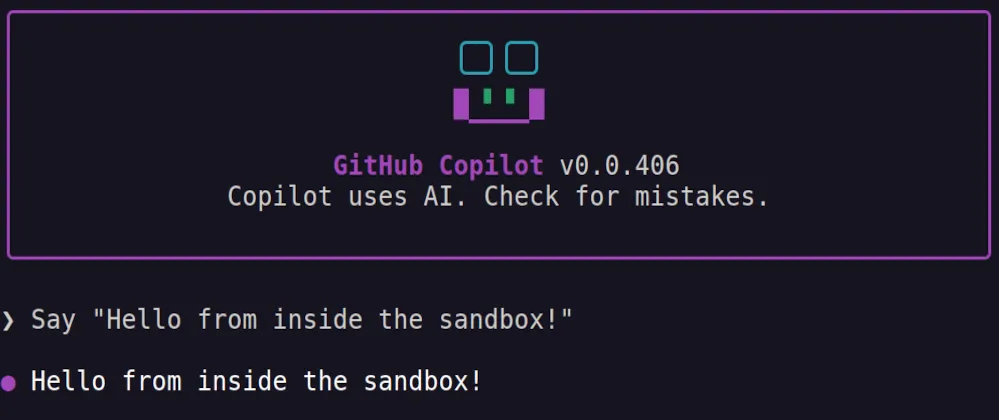
Sneak-peak of what you’ll going to build
With this setup, you’ll be able to launch Copilot CLI in a sandboxed container with a single command.
For example, let’s say you have a project at ~/projects/my-project. You can just run:
./copilot-sandbox.sh ~/projects/my-projectThis will do the following:
- Start GitHub Copilot CLI in a sandboxed environment
- Give Copilot access to your project folder but nothing else on your system
- Destroy the sandbox when you exit again, but remember the authentication so you don’t have to log in next time
- Allow you to run multiple sandboxed agents for different projects in parallel
Let’s go!
1. Install rootless Docker on Linux
Rootless Docker means the Docker daemon runs as your regular user (not root), and containers are isolated using user namespaces. The containers think they’re running as root inside, but they’re actually mapped to your unprivileged user ID on the host. This is much safer than regular Docker.
1.1 Install prerequisites
sudo apt-get updatesudo apt-get install -y uidmap dbus-user-sessionWhat’s happening here:
uidmapprovides thenewuidmapandnewgidmaptools that allow your user to map a range of user IDsdbus-user-sessionensures systemd user services work correctly- These tools let Linux create “fake” root environments inside containers while keeping everything unprivileged on the host
1.2 Configure subordinate UIDs/GIDs
Check if you already have subordinate UID/GID ranges:
cat /etc/subuidcat /etc/subgid-
If you see lines like, you’re already set up. Go to the next step (1.3).
yourusername:100000:65536 -
Otherwise, if these files are empty or your user isn’t listed, add ranges:
Terminal window sudo usermod --add-subuids 100000-165535 --add-subgids 100000-165535 $USER
What this means:
- Your user gets a range of 65,536 “fake” UIDs (100000-165535)
- When a container thinks it’s running as UID 0 (root), it’s actually mapped to UID 100000 on your host
- This means even if a container is compromised, the attacker only has access to these mapped, unprivileged UIDs
1.3 Install Docker CE (if not already installed)
curl -fsSL https://get.docker.com -o get-docker.shsudo sh get-docker.sh1.4 Install rootless Docker extras
sudo apt-get install -y docker-ce-rootless-extrasWhat’s in this package:
dockerd-rootless-setuptool.sh- the setup scriptrootlesskit- creates the user namespace and handles networkingslirp4netns- provides user-mode networking (no root needed)
1.5 Disable the root Docker daemon
sudo systemctl disable --now docker.service docker.socketWhy:
- You don’t want the root daemon running alongside rootless
- This prevents confusion and conflicts
1.6 Initialize rootless Docker
dockerd-rootless-setuptool.sh installWhat this does:
- Checks prerequisites (subuid/subgid)
- Creates systemd user service files in
~/.config/systemd/user/docker.service - Starts the Docker daemon as your user
- Sets up the Docker socket at
/run/user/$(id -u)/docker.sock
1.7 Configure your shell
Add to ~/.bashrc:
export PATH=/home/$USER/bin:$PATHexport DOCKER_HOST=unix:///run/user/$(id -u)/docker.sockThen reload:
source ~/.bashrcWhy:
- The Docker CLI needs to know to talk to your user’s socket, not the system socket
- The binaries are installed in your home directory, not system paths
1.8 Enable the service to start on boot
systemctl --user enable dockersudo loginctl enable-linger $USERWhat enable-linger does:
- Normally, user services stop when you log out
enable-lingerkeeps your user’s systemd instance running even when you’re not logged in- This means your Docker daemon persists across logins
1.9 Verify installation
docker run hello-worldCheck the output in the terminal. You should see a message confirming Docker is working.
2. Building your Copilot sandbox image
Now let’s create myorg/copilot-sandbox:latest with Copilot CLI pre-installed.
2.1 Create a Dockerfile
mkdir ~/copilot-sandboxcd ~/copilot-sandboxnano DockerfilePut this in the Dockerfile:
FROM ubuntu:22.04
# Prevent interactive prompts during installationENV DEBIAN_FRONTEND=noninteractive
# Install basic tools and Node.js repositoryRUN apt-get update && apt-get install -y \    curl \    git \    nano \    ripgrep \    ca-certificates \    gnupg \    && mkdir -p /etc/apt/keyrings \    && curl -fsSL https://deb.nodesource.com/gpgkey/nodesource-repo.gpg.key | gpg --dearmor -o /etc/apt/keyrings/nodesource.gpg \    && echo "deb [signed-by=/etc/apt/keyrings/nodesource.gpg] https://deb.nodesource.com/node_22.x nodistro main" | tee /etc/apt/sources.list.d/nodesource.list
# Install Node.js 22RUN apt-get update && apt-get install -y nodejs
# Install GitHub Copilot CLIRUN npm install -g @github/copilot
# OPTIONAL: Install any other dependencies your devleopment setup# might require (Python, Java, etc.)
# Clean up to reduce image sizeRUN apt-get clean && rm -rf /var/lib/apt/lists/*
# Set working directoryWORKDIR /workspace
# Default command: bashCMD ["/bin/bash"]
Important: make sure you also add all other packages your developer setup might require to this file.
2.2 Build the image
docker build -t myorg/copilot-sandbox:latest .This will take a few minutes. The -t flag tags it with the name you want.
3. Running a session with the sandboxed Copilot CLI
You’ll use ephemeral containers (destroyed on exit with --rm) but persist authentication data in named Docker volumes. This means:
- Each container is fresh and clean
- You can work on different projects easily
- You only have to authenticate once (auth data persists in volumes)
- No container clutter building up
3.1 Create a persistent volume for authentication
First, let’s create the volume that will store authentication data:
docker volume create copilot-sandbox-rootWhat this does:
- Creates a named volume called
copilot-sandbox-root - This volume persists on your system even when containers are destroyed
- You’ll mount this to
/rootinside the container where Copilot CLI usually stores its auth tokens
3.2 Create the launch script
nano ~/copilot-sandbox.shPut this in the file:
#!/bin/bash
# Get project directory from first argument, default to current directoryPROJECT_DIR="${1:-.}"
# Resolve to absolute pathPROJECT_PATH="$(realpath "$PROJECT_DIR")"
# Check if project directory existsif [ ! -d "$PROJECT_PATH" ]; then    echo "Error: Directory $PROJECT_PATH does not exist"    exit 1fi
echo "=========================================="echo "Launching Copilot sandbox container"echo "Project: $PROJECT_PATH"echo "=========================================="echo ""echo "Inside the container, run 'copilot' to open the CLI."echo ""
# Run the containerdocker run --rm -it \  --cap-drop ALL \  --security-opt no-new-privileges \  -v "$PROJECT_PATH":/workspace:rw \  -v copilot-sandbox-root:/root \  myorg/copilot-sandbox:latest \  bash
Flag explanations:
--rm: Automatically removes the container when you exit (keeps system clean)-it: Combined flags:-i(interactive): Keeps STDIN open so you can type commands-t(pseudo-TTY): Allocates a terminal for proper interactive experience
--cap-drop ALL: Drops all Linux capabilities (prevents privileged operations)--security-opt no-new-privileges: Prevents privilege escalation via setuid/setgid-v "$PROJECT_PATH":/workspace:rw: Mounts your project directory to /workspace with read-write access-v copilot-sandbox-root:/root: Mounts the persistent volume to /root (where auth data is stored)myorg/copilot-sandbox:latest: The image you built earlierbash: Starts an interactive bash shell
3.3 Make the script executable
chmod +x ~/copilot-sandbox.sh4. First-time authentication
4.1 Launch your first session
~/copilot-sandbox.sh ~/projects/my-projectYou’re now inside a container with a bash prompt. Your project files are available at /workspace.
4.2 Authenticate with GitHub Copilot CLI
Inside the same container, run:
copilotWhat happens:
- Copilot CLI starts for the first time
- It prompts you to authenticate with
/login - Type
/loginand press Enter - Follow the browser authentication flow
- Sign in with your GitHub account that has Copilot access
- Token is saved to the
copilot-sandbox-rootvolume
4.3 Exit the Container
exitThe container is destroyed, but your authentication data remains in the copilot-sandbox-root volume and persists across container sessions.
Usage examples
Example 1: Run from your project directory
cd ~/projects/my-project~/copilot-sandbox.shIf you’re already in the project folder, you can just run the script without arguments. It will use the current directory if no argument is provided.
Example 2: Run multiple projects in parallel
Terminal 1:
~/copilot-sandbox.sh ~/projects/project-aTerminal 2:
~/copilot-sandbox.sh ~/projects/project-bTerminal 3:
~/copilot-sandbox.sh ~/projects/project-cEach container is isolated, fresh, and destroyed on exit. Your authentication persists across sessions.
Wrapping Up
You now have a fully isolated environment for running GitHub Copilot CLI on Linux.
Fresh containers for each project, persistent authentication, and strong security boundaries.
Copilot can modify files in /workspace freely but can’t touch the rest of your host system.
Remember: the container has full network access. The agent can send data to external servers. Don’t run untrusted code or work with sensitive credentials inside the container unless you’re comfortable with that risk.
If you found this useful, follow me on X, BlueSky, or LinkedIn for more technical deep dives like this.